Creating Outlook email signature templates | HTM, RTF, TXT
Outlook signature templates can be created in the following formats: HTM format is required, but RTF and TXT formats are optional.
| Supported Signature Formats |
|---|
| HTM Outlook Classic, Outlook on the Web and Outlook New |
| RTF Outlook Classic only |
| TXT Outlook Classic, Outlook on the Web and Outlook New |
We have developed a PowerShell script to automate most of the work involved in generating email‑signature templates in all required formats. Below is a brief explanation of what the script aims to accomplish.
Let’s start by listing out the signature template types used for Microsoft Outlook Classic, Outlook Web, and Outlook New.
New Message Signature (Classic Outlook)
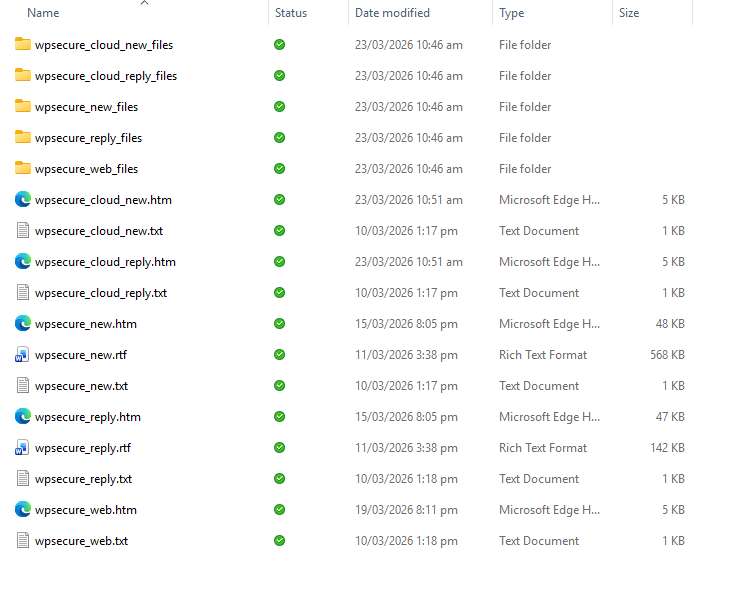
The New Message signature is applied when composing a new message in Outlook Classic. It requires the wpsecure_new.htm file. The wpsecure_new.txt and wpsecure_new.rtf Files are optional.
Microsoft Word is recommended for creating HTM signatures, as it embeds images using VML, ensuring consistent rendering across Outlook clients. When saving the HTM file from Word, any referenced images are automatically stored in a companion folder named wpsecure_new_files. If this folder exists, it will be automatically included in the signature package.
Reply Message Signature (Classic Outlook)
The Reply Message signature is applied when responding to a message in Outlook Classic. It requires the wpsecure_reply.htm file. The wpsecure_reply.txt and wpsecure_reply.rtf files are optional.
As with the New Message signature, Microsoft Word is recommended for authoring the HTM file. Referenced images are automatically stored in a companion folder named wpsecure_reply_files and will be included in the signature package if present.
Web Signature (Exchange Online)
The Web signature is used by organisations that deploy signatures via Exchange Online. It requires the wpsecure_web.htm file. The wpsecure_web.txt file is optional. RTF is not supported for this signature type.
All images referenced in the Web signature must use HTTPS-based URLs. Local image files are not supported by Exchange Online and must not be used. When deployed via Exchange Online, this signature is applied to both new messages and replies.
New Message Cloud Signature (New Outlook & Outlook on the Web)
The New Message Cloud signature is applied when composing a new message in New Outlook or Outlook on the Web (OWA). It requires the wpsecure_cloud_new.htm file and wpsecure_cloud_new.txt is optional.
Microsoft Word is recommended for creating the HTM file; the file must be saved as Web Page, Filtered — unlike the HTM files created for Classic Outlook. Referenced images are automatically stored in a companion folder named wpsecure_cloud_new_files and will be included in the signature package if present.
Reply Message Cloud Signature (New Outlook & Outlook on the Web)
The Reply Message Cloud signature is applied when replying to or forwarding a message in New Outlook or Outlook on the Web (OWA). It requires the wpsecure_cloud_reply.htm file and wpsecure_cloud_reply.txt is optional.
As with the Cloud New signature, the HTM file must be saved from Word as Web Page, Filtered. Referenced images are automatically stored in a companion folder named wpsecure_cloud_reply_files and will be included in the signature package if present.
Note: Make sure Microsoft Word is fully functional on the device. Microsoft Word is both required for creating the templates and for use by the PowerShell script.
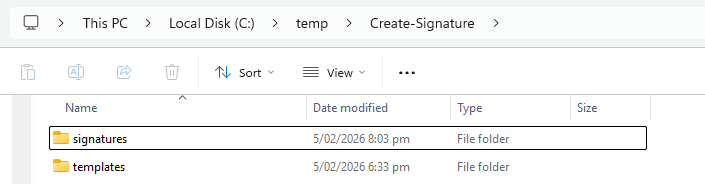
Step 1: Create the following folder structure
Create a new directory. Call it what you please. Under the newly created directory, create two folders, “signatures” and “templates“.
Step 2: Create a reference file
Create a --- A delimited text file that contains a list of ‘placeholder’ values and an ‘easy‑to‑identify-and-replace’ identifier for each one. These placeholders will be used within your email templates. The image below illustrates the structure we are aiming to achieve.
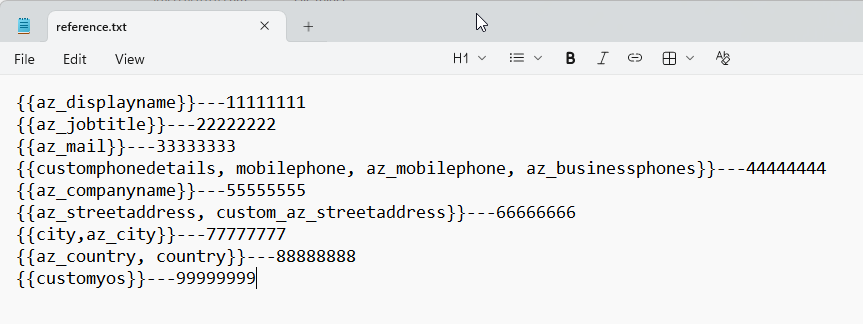
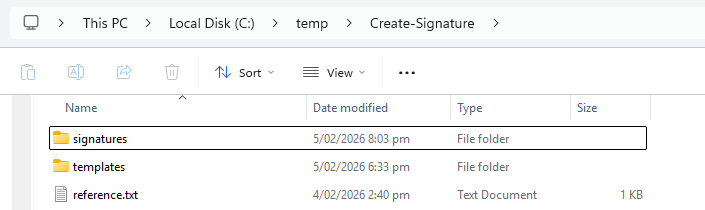
The images above show the placeholder values on the left and identifiers such as 1111111111 and 2222222222 on the right. The reason for this approach is simple: identifiers like these are extremely easy to search for and replace because they are unique, contain no special characters, and are unlikely to appear accidentally in normal text. This makes them ideal for automated or bulk‑replacement operations. Save this file as “reference.txt” in the root of the above-created directory.
Step 3: Create Microsoft Word templates
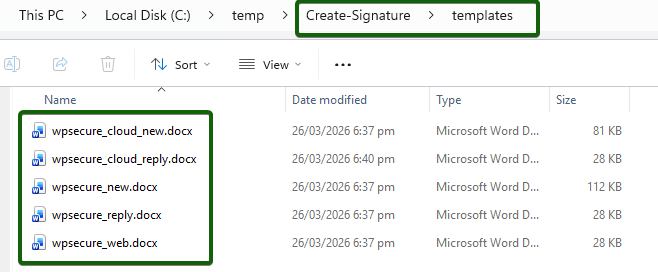
Next, create five Microsoft Word templates and save them into the ‘templates‘ subfolder using the following filenames:
- wpsecure_new.docx – for the New message signature
- wpsecure_reply.docx – for the Reply message signature
- wpsecure_web.docx – for the exchange Online default signature
- wpsecure_cloud_new.docx – for the New message signature in New Outlook and Outlook on the Web (OWA)
- wpsecure_cloud_reply.docx – for the Reply message signature in New Outlook and Outlook on the Web (OWA)
Use identifiers such as 1111111111 and 2222222222 to represent user attributes like displayName, mobilePhone, companyName, etc. When possible, copy and paste the identifiers directly from the reference.txt file instead of typing them manually into the Microsoft Word documents.
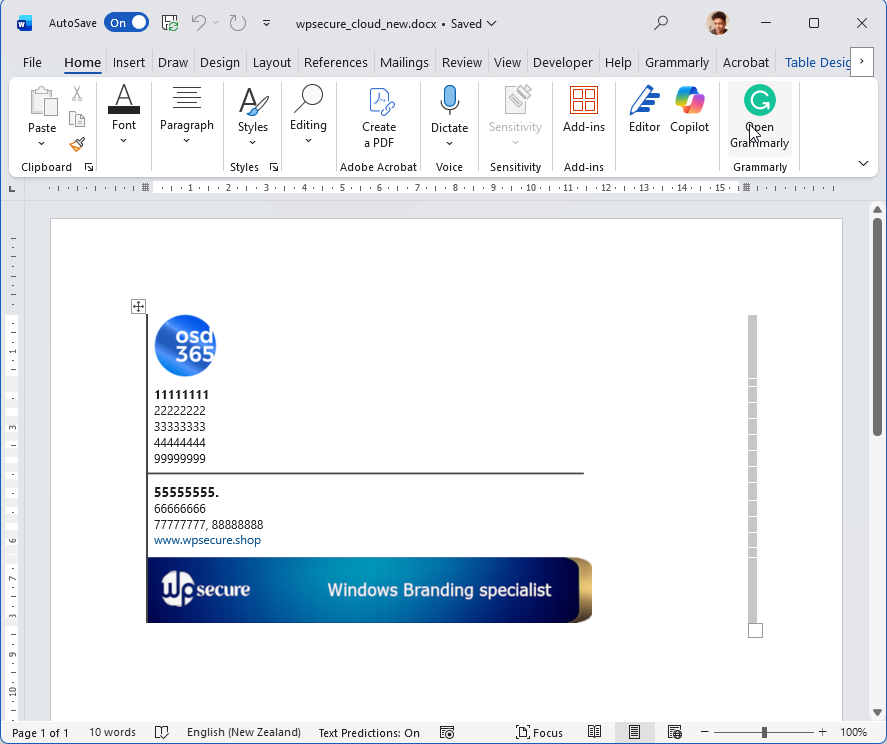
For this demonstration, we are using the same template for all use cases. However, your organization may choose to use different templates for New, Reply, and Web message scenarios.
Listed below are several guidelines that will help ensure the rest of the creation process goes smoothly. We recommend following these guidelines for the best results.
Always insert images from your local computer into the Word document when creating New and Reply message signatures. This ensures Microsoft Word embeds the images using VML (Vector Markup Language), which is required for proper rendering in Outlook Classic.
Use the same approach for Web message signatures, inserting images locally during template creation.
After the HTM file is generated, open the HTM file and replace the local image paths with HTTPS‑based URLs that point to online image resources. Outlook on the Web and Outlook New do not support local image references.For separator lines, always use image files, not Microsoft Word’s built‑in shapes, dividers, or drawing tools.
Insert the separator line as an image for all signature types.
After the HTM file is created:- New and Reply signatures keep the embedded local image.
- Web signatures require replacing the local image reference with an online HTTPS image URL (as described above).
Step 4: Setup Powershell script.
Create a PowerShell script called ‘wpsecure_export_to_signatures.ps1‘ in the root of the folder and copy and paste the below script content into the newly created script.
<#
    wpsecure_export_to_signatures.ps1

    PURPOSE
    -------
    1) Validate folder structure that sits next to this script.
    2) Export specific 'wpsecure_*.docx' files found in .\templates\ directly into .\signatures\
       using Microsoft Word COM automation:
          - wpsecure_new.docx, wpsecure_reply.docx → RTF, Web Page (.htm), Plain Text (.txt)
          - wpsecure_web.docx                       → Web Page, Filtered (.htm), Plain Text (.txt)
    3) Perform text replacements in the saved output files based on reference.txt mappings.
       (This script writes replacements back to the files in .\signatures\)

    EXPECTED LAYOUT (script runs from the parent folder)
    ---------------------------------------------------
        .\
          wpsecure_export_to_signatures.ps1   ← THIS script
          reference.txt                       ← contains --- delimited key-value pairs
          templates\                          ← contains the .docx templates
          signatures\                         ← destination for saved outputs

    RUN
    ---
    Set-ExecutionPolicy -Scope Process -ExecutionPolicy Bypass
    .\wpsecure_export_to_signatures.ps1 -Verbose
#>

# =================================================================================================
# REGION: Logging Helpers (Colourful console messages)
# =================================================================================================
function Write-Info    { param([Parameter(Mandatory)][string]$Message) Write-Host "[INFO ] $Message"  -ForegroundColor Cyan    }
function Write-Ok      { param([Parameter(Mandatory)][string]$Message) Write-Host "[ OK  ] $Message"  -ForegroundColor Green   }
function Write-WarnMsg { param([Parameter(Mandatory)][string]$Message) Write-Host "[WARN ] $Message"  -ForegroundColor Yellow  }
function Write-ErrMsg  { param([Parameter(Mandatory)][string]$Message) Write-Host "[ERROR] $Message"  -ForegroundColor Red     }

# =================================================================================================
# REGION: Word Constants (File format & misc codes)
# =================================================================================================
# SaveAs formats (Word)
$wdFormatRTF        = 6     # RTF
$wdFormatHTML       = 8     # Web Page (.htm)
$wdFormatText       = 2     # Plain Text (.txt)
$wdFormatFiltered   = 10    # Web Page, Filtered (.htm)
# Misc
$wdAlertsNone       = 0     # Suppress Word UI prompts

# =================================================================================================
# REGION: Helper Functions (paths, folders, COM lifecycle, input normalization)
# =================================================================================================

function Get-BaseDir {
    <#
        Returns the base folder from which this script is running.
        Works for both interactive invocation and right-click "Run with PowerShell".
    #>
    if ($PSCommandPath) {
        return (Split-Path -Parent $PSCommandPath)
    }
    elseif ($MyInvocation.MyCommand.Path) {
        return (Split-Path -Parent $MyInvocation.MyCommand.Path)
    }
    else {
        return (Get-Location).Path
    }
}

function Ensure-EmptyFolder {
    <#
        Ensures the given folder exists and is empty.
        If it exists, clears all items (recursively).
        If it doesn't, creates it.
    #>
    param(
        [Parameter(Mandatory)][string]$Path
    )

    if (-not (Test-Path -LiteralPath $Path)) {
        New-Item -ItemType Directory -Path $Path | Out-Null
        return
    }

    $items = Get-ChildItem -LiteralPath $Path -Force -ErrorAction SilentlyContinue
    if ($items -and $items.Count -gt 0) {
        Write-Verbose "Clearing folder: $Path"
        Get-ChildItem -LiteralPath $Path -Force | Remove-Item -Recurse -Force -ErrorAction Stop
    }
}

function Get-WordApp {
    <#
        Creates & returns a Word.Application COM object (hidden, alerts suppressed).
        Throws a friendly error if Word isn't installed/accessible.
    #>
    try {
        $w = New-Object -ComObject Word.Application -ErrorAction Stop
        $w.Visible       = $false
        $w.DisplayAlerts = $wdAlertsNone
        return $w
    }
    catch {
        throw "Microsoft Word is not installed or the COM interface is unavailable."
    }
}

function Close-WordDoc {
    <#
        Closes a Word Document COM object (if present) and releases COM.
    #>
    param($doc)

    if ($doc) {
        try { $doc.Close([ref]0) } catch {}
        try { [void][Runtime.InteropServices.Marshal]::ReleaseComObject($doc) } catch {}
    }
}

function Quit-Word {
    <#
        Quits Word safely and releases COM; forces GC to finalize RCWs.
    #>
    param($w)

    if ($w) {
        try { $w.Quit() } catch {}
        try { [void][Runtime.InteropServices.Marshal]::ReleaseComObject($w) } catch {}
    }
    [gc]::Collect()
    [gc]::WaitForPendingFinalizers()
}

function Export-DocxToSignatures {
    <#
        Opens a .docx file read-only and exports it into the signatures folder in
        the appropriate formats based on the file name.

        - wpsecure_new.docx / wpsecure_reply.docx  → RTF, Web Page (.htm), Plain Text (.txt)
        - wpsecure_web.docx                         → Web Page, Filtered (.htm), Plain Text (.txt)
    #>
    param(
        [Parameter(Mandatory)][string]$DocxPath,
        [Parameter(Mandatory)][string]$SignaturesFolder
    )

    $name = [IO.Path]::GetFileName($DocxPath).ToLowerInvariant()
    $stem = [IO.Path]::GetFileNameWithoutExtension($DocxPath)

    Write-Info "Exporting $name → $SignaturesFolder"
    $doc = $null

    try {
        # Open read-only for safety
        $doc = $word.Documents.Open($DocxPath, $false, $true)

        if ($name -eq 'wpsecure_new.docx' -or $name -eq 'wpsecure_reply.docx') {
            $targets = @(
                @{ Path = Join-Path $SignaturesFolder ($stem + '.rtf'); Fmt = $wdFormatRTF;      Label = 'RTF' },
                @{ Path = Join-Path $SignaturesFolder ($stem + '.htm'); Fmt = $wdFormatHTML;     Label = 'Web Page' },
                @{ Path = Join-Path $SignaturesFolder ($stem + '.txt'); Fmt = $wdFormatText;     Label = 'Plain Text' }
            )
        }
        elseif ($name -eq 'wpsecure_web.docx' -or $name -eq 'wpsecure_cloud_new.docx' -or $name -eq 'wpsecure_cloud_reply.docx') {
            $targets = @(
                @{ Path = Join-Path $SignaturesFolder ($stem + '.htm'); Fmt = $wdFormatFiltered; Label = 'Web Page, Filtered' },
                @{ Path = Join-Path $SignaturesFolder ($stem + '.txt'); Fmt = $wdFormatText;     Label = 'Plain Text' }
            )
        }
        else {
            Write-WarnMsg "Skipping unsupported file name: $name"
            return
        }

        foreach ($t in $targets) {
            try {
                Write-Verbose "Saving $($t.Label) → $($t.Path)"
                $doc.SaveAs([ref]$t.Path, [ref]$t.Fmt)
                Write-Ok "Saved $($t.Label)"
            }
            catch {
                Write-ErrMsg "Failed to save $($t.Label) for ${name}: $($_.Exception.Message)"
            }
        }
    }
    catch {
        Write-ErrMsg "Export error for ${name}: $($_.Exception.Message)"
    }
    finally {
        Close-WordDoc $doc
    }
}

function Remove-SurroundingQuotes {
    <#
        Normalizes smart quotes to straight quotes and trims a single leading/trailing
        matching quote pair if present.
    #>
    param([string]$Text)

    if ([string]::IsNullOrWhiteSpace($Text)) { return $Text }

    $t = $Text.Trim() `
        -replace '^[\u201C\u201D]', '"' `
        -replace '[\u201C\u201D]$', '"' `
        -replace '^[\u2018\u2019]', "'" `
        -replace '[\u2018\u2019]$', "'"

    if (
        ($t.StartsWith('"') -and $t.EndsWith('"')) -or
        ($t.StartsWith("'") -and $t.EndsWith("'"))
    ) {
        $t = $t.Substring(1, $t.Length - 2)
    }
    return $t.Trim()
}

function Normalize-Input {
    <#
        Convenience wrapper that feeds text through Remove-SurroundingQuotes.
    #>
    param([string]$Text)
    Remove-SurroundingQuotes $Text
}

# =================================================================================================
# REGION: Main
# =================================================================================================
try {
    Write-Info "Starting wpsecure export (direct to signatures)…"
    $base = Get-BaseDir
    Write-Verbose "Base directory: $base"

    # ---------------------------------------------------------------------------------------------
    # Validate expected structure next to this script
    # ---------------------------------------------------------------------------------------------
    $refPath    = Join-Path $base 'reference.txt'     # existence check only (read later)
    $templates  = Join-Path $base 'templates'         # source .docx location
    $signatures = Join-Path $base 'signatures'        # destination for saved outputs

    if (-not (Test-Path -LiteralPath $refPath))   { throw "reference.txt not found at: $refPath" }
    if (-not (Test-Path -LiteralPath $templates)) { throw "Missing 'templates' folder at: $templates" }

    # Signatures folder must exist and be empty before we save
    New-Item -ItemType Directory -Force -Path $signatures | Out-Null
    Ensure-EmptyFolder -Path $signatures

    # ---------------------------------------------------------------------------------------------
    # Locate DOCX candidates in templates\
    # ---------------------------------------------------------------------------------------------
    $docxNames = @('wpsecure_new.docx','wpsecure_reply.docx','wpsecure_web.docx', 'wpsecure_cloud_new.docx','wpsecure_cloud_reply.docx')
    $docxPaths = @()

    foreach ($n in $docxNames) {
        $p = Join-Path $templates $n
        if (Test-Path -LiteralPath $p) { $docxPaths += $p }
    }

    if ($docxPaths.Count -eq 0) {
        throw "No target DOCX files found in templates: $templates"
    }

    Write-Ok ("Found {0} DOCX file(s) to process." -f $docxPaths.Count)

    # ---------------------------------------------------------------------------------------------
    # Start Word and export directly to signatures
    # ---------------------------------------------------------------------------------------------
    Write-Info "Checking Microsoft Word…"
    $word = Get-WordApp
    Write-Ok  "Word is available."

    foreach ($docx in $docxPaths) {
        Export-DocxToSignatures -DocxPath $docx -SignaturesFolder $signatures
    }

    # ---------------------------------------------------------------------------------------------
    # Parse mapping file (reference.txt) to build Search/Replace list
    # (Preserves your original behavior: LEFT = replacement, RIGHT = search)
    # ---------------------------------------------------------------------------------------------
    Write-Verbose "Reading mapping file: $refPath"
    $rawLines = Get-Content -LiteralPath $refPath
    $mapping  = New-Object System.Collections.Generic.List[object]

    foreach ($line in $rawLines) {
        $line = $line.Trim()
        if (-not $line) { continue }

        $parts = $null

        if ($line -like '*---*') {
            # Preferred delimiter: ---  (split on first occurrence)
            $parts = $line -split '\s*---\s*', 2
        }
        else {
            # Fallback: split on first whitespace run
            $m = [regex]::Match($line, '^(.*\S)\s+(\S.*)$')
            if ($m.Success) { $parts = @($m.Groups[1].Value, $m.Groups[2].Value) }
        }

        if ($parts.Count -eq 2) {
            # NOTE: Your original mapping orientation:
            #   replacement = LEFT, search = RIGHT
            $replacement = (Remove-SurroundingQuotes $parts[0]).Trim()
            $search      = (Remove-SurroundingQuotes $parts[1]).Trim()

            if ($replacement -and $search) {
                $mapping.Add([pscustomobject]@{
                    Search  = $search
                    Replace = $replacement
                })
            }
        }
    }

    if ($mapping.Count -eq 0) {
        Write-Warning "No valid mappings found. Nothing to do."
        exit
    }

    # ---------------------------------------------------------------------------------------------
    # Process only defined output files (in signatures folder)
    # ---------------------------------------------------------------------------------------------
    $targetNames = @(
        'wpsecure_new.htm','wpsecure_new.rtf','wpsecure_new.txt',
        'wpsecure_reply.htm','wpsecure_reply.rtf','wpsecure_reply.txt',
        'wpsecure_cloud_new.htm','wpsecure_cloud_new.txt',
        'wpsecure_cloud_reply.htm','wpsecure_cloud_reply.txt',
        'wpsecure_web.htm','wpsecure_web.txt'
    )

    $summary = New-Object System.Collections.Generic.List[object]

    foreach ($name in $targetNames) {
        $path = Join-Path $signatures $name

        if (-not (Test-Path $path)) {
            $summary.Add([pscustomobject]@{ File = $name; Status = 'Not found';   Mappings = 0 })
            continue
        }

        # Read the whole file (as text) for replacements
        try {
            $text = Get-Content -LiteralPath $path -Raw -ErrorAction Stop
        }
        catch {
            Write-Warning ("Failed to read {0}: {1}" -f $name, $_.Exception.Message)
            $summary.Add([pscustomobject]@{ File = $name; Status = 'Read error'; Mappings = 0 })
            continue
        }

        if ($null -eq $text) { $text = '' }

        $isRtf = $name.ToLower().EndsWith('.rtf')
        $count = 0

        foreach ($pair in $mapping) {
            $search      = $pair.Search
            $replacement = $pair.Replace

            # Escape braces when writing into RTF content to avoid breaking control words
            if ($isRtf) {
                $replacement = $replacement.Replace('{','\{').Replace('}','\}')
            }

            if ($text.Contains($search)) {
                $text = $text.Replace($search, $replacement)
                $count++
            }
        }

        if ($count -gt 0) {
            try {
                Set-Content -LiteralPath $path -Value $text -NoNewline -Encoding UTF8
                $summary.Add([pscustomobject]@{ File = $name; Status = 'Updated';     Mappings = $count })
            }
            catch {
                Write-Warning ("Failed to write {0}: {1}" -f $name, $_.Exception.Message)
                $summary.Add([pscustomobject]@{ File = $name; Status = 'Write error'; Mappings = $count })
            }
        }
        else {
            $summary.Add([pscustomobject]@{ File = $name; Status = 'No changes'; Mappings = 0 })
        }
    }

    # Nicely formatted summary
    $summary |
        Sort-Object File |
        Format-Table -AutoSize

    Write-Ok "Export complete. Files are in: $signatures"
}
catch {
    Write-ErrMsg $_.Exception.Message
}
finally {
    if ($word) { Quit-Word $word }
}
# =================================================================================================
# END
# =================================================================================================
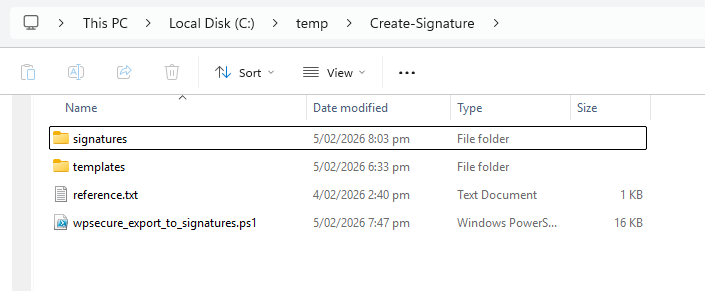
Make sure your folder and file structure look like the image below.
Step 5: Run the PowerShell script
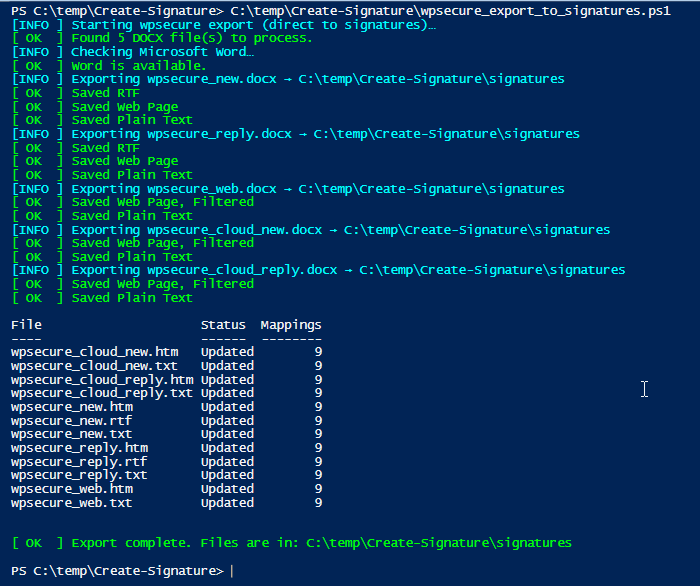
Run the PowerShell script and the output of the script should look similar to the image below.
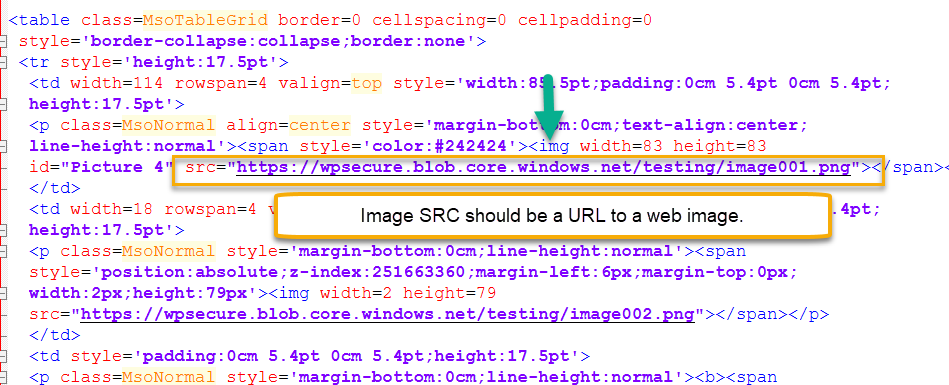
Step 6: Replace image URL's in Web HTM file
Open the ‘wpsecure_web.htm‘ in the ‘signatures’ folder and replace local references for images and other assets with online references.
Local references are paths that point to images or other assets stored on your computer, such as:
wpsecure_web_files/image001.pngfile:///C:/Users/You/Documents/wpsecure_web_files/image001.png
Online references are URLs that point to images or assets hosted on the internet, such as:
https://yourcompany.com/signatures/image001.png
Step 7: Check TXT template formating
Open ‘wpsecure_new.txt‘, ‘wpsecure_reply.txt‘, ‘wpsecure_cloud_new.txt‘, ‘wpsecure_cloud_reply.txt‘, and ‘wpsecure_web.txt‘ in the ‘signatures‘ folder and make sure the layout of the test-based signatures is what you want them to be.
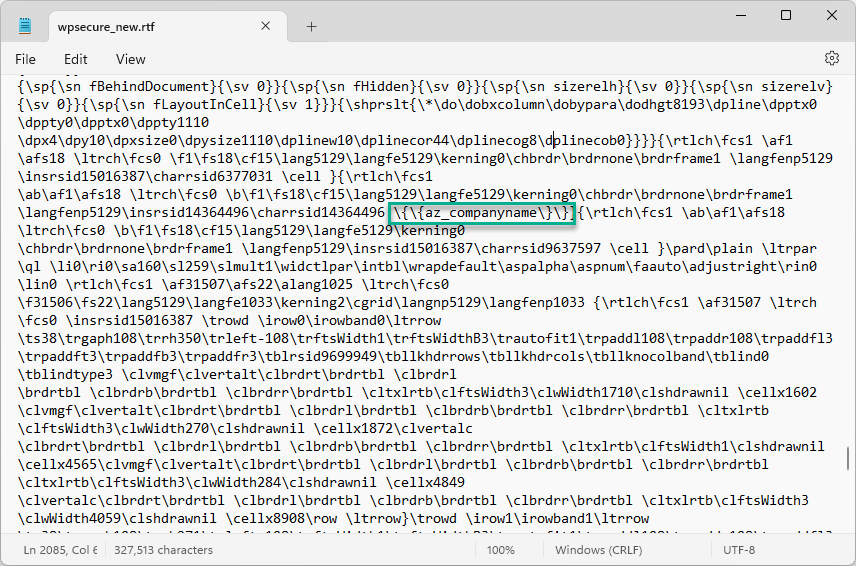
Step 8: Check RTF template placeholders
Usually, the HTML and TXT file replacements complete without any issues, but the RTF file may become problematic if edits were not applied correctly. After the script runs, the RTF file may fail to open normally with a Microsoft Word-like visual, instead displaying its underlying formatting tags. Do not panic—this is expected behavior.
Make sure all placeholder values remain intact in the RTF file, exactly as shown in the image below. They must not be split across multiple lines; if they are broken, the replacement process has failed for the RTF files.
Finally
The signatures folder, once the PowerShell script has completed successfully, should resemble the structure shown in the image below.