Table of Contents
Administrator‑Led App Registration for Outlook Signature Placeholder Synchronization
This method uses a client secret (secret key) to retrieve user attributes from Microsoft Entra ID.
Using a secret key for this purpose is not considered a best practice due to the increased security risk associated with credential‑based authentication.
This option is provided for administrative use only and intended for edge cases where alternative, more secure authentication methods are not feasible. Administrators should enable and use this approach with caution and ensure appropriate key management and security controls are in place.
What is your Azure tenant type?
Public – The default Azure cloud used globally by commercial organizations and individuals.
China – A separate Azure instance operated by 21Vianet for compliance with Chinese regulations.
USGovernment / USGov – A sovereign Azure cloud designed for U.S. government agencies and contractors, offering enhanced compliance and security.
Suppose you are on a sovereign tenant like Azure China or Azure US Government. In that case, you will need to run one of the following commands before users can successfully connect to Azure using the shortcut to SYNC placeholder attributes.
"C:\Program Files (x86)\wpsecure\wpsecure-set.exe" -azauth china
"c:\Program Files (x86)\wpsecure\wpsecure-set.exe" -azauth usgovernment
If you want to move back to the Public tenant, you can reset the above set value by using the command below.
"c:\Program Files (x86)\wpsecure\wpsecure-set.exe" -azauth public
Administrators can use this approach to silently deploy Outlook signature placeholder data throughout the organization. The command must be run in the context of the logged-in user.
You could do this as a
- Win32 Intune APP
- SCCM application
- SCCM Package
- Baseline Script (Recommended)
EntraID App Registration
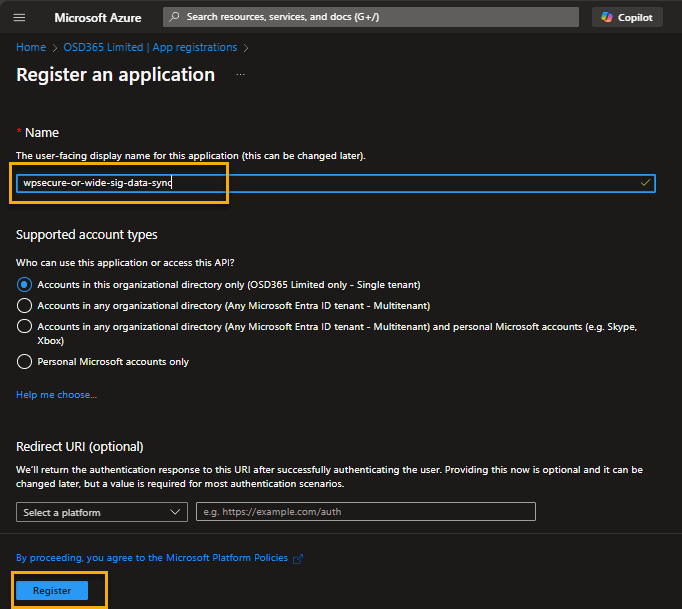
Create a new App registration and provide a descriptive name. Click “Register“
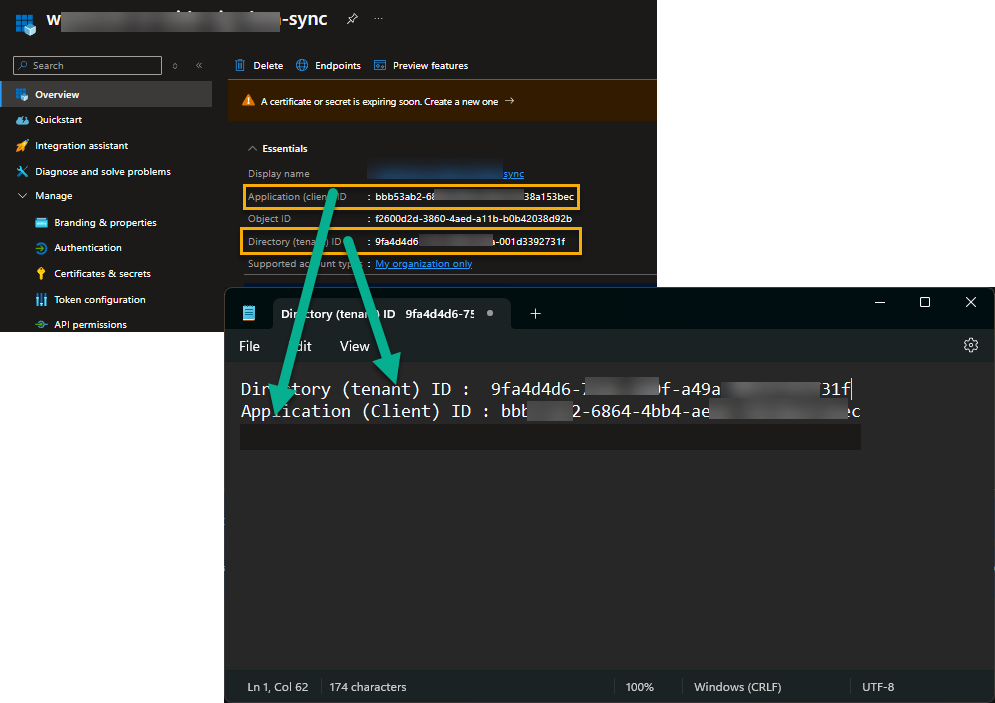
Go to ‘Overview” and copy the Tenant ID and the Client ID to Notepad.
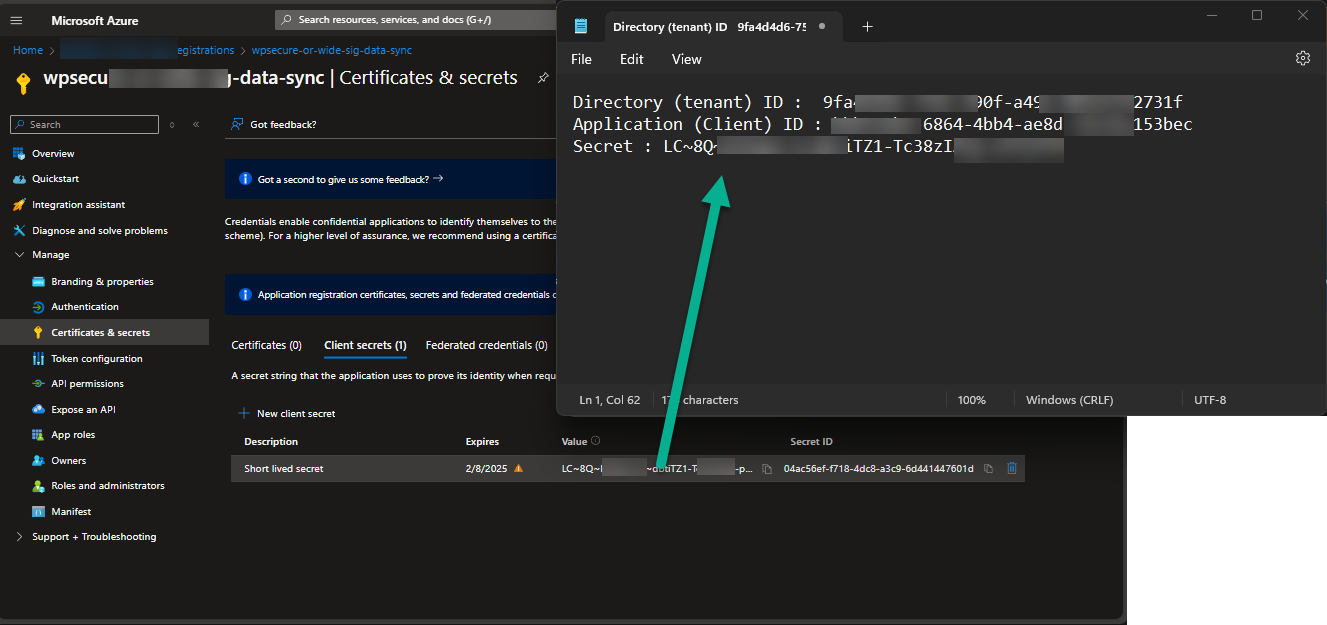
Go to ‘Manage/Certificate & secrets” and create a secret. Copy the secret to Notepad
1 | Keep the validity time span as short possible. |
2 | Deploy the Placeholder Sync process as an Intune Win32 App and not an open script. |
3 | After a successful deployment revoke or delete the secret from the App registration. |
API Permissions
Go to ‘Manage/API Permissions” and click “Add a permission.“
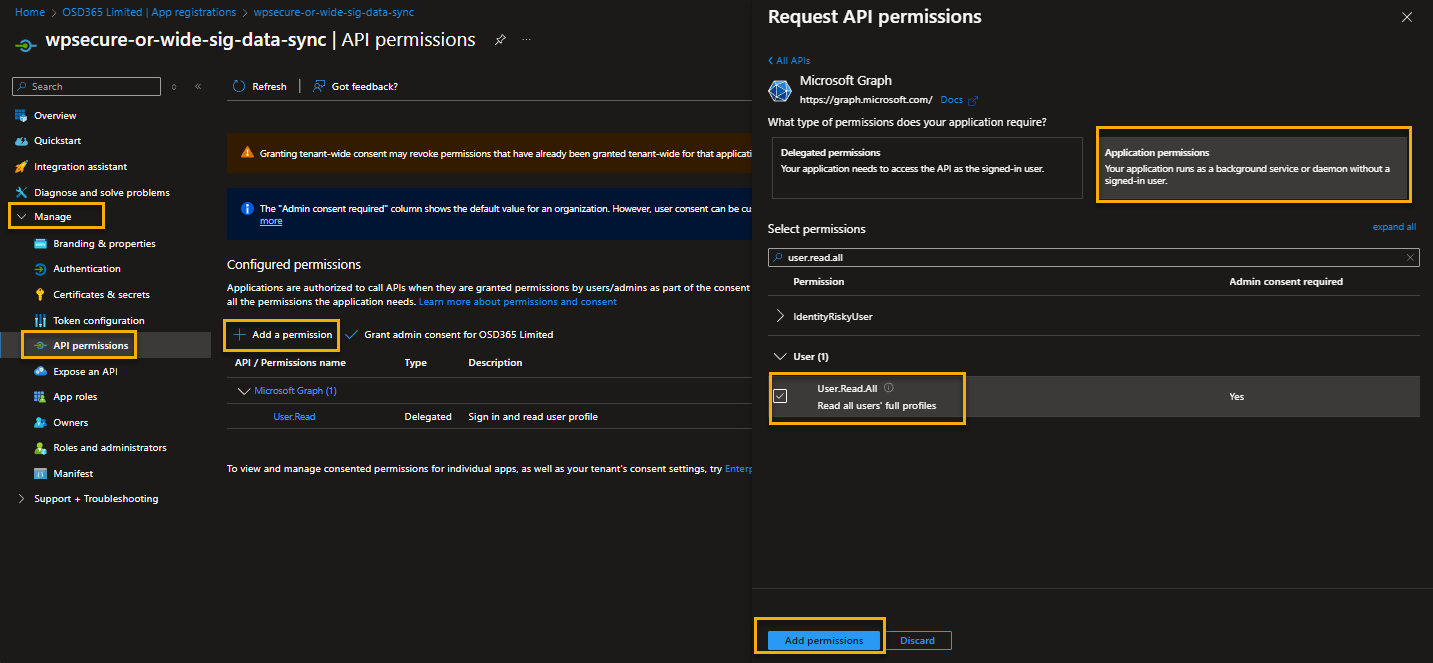
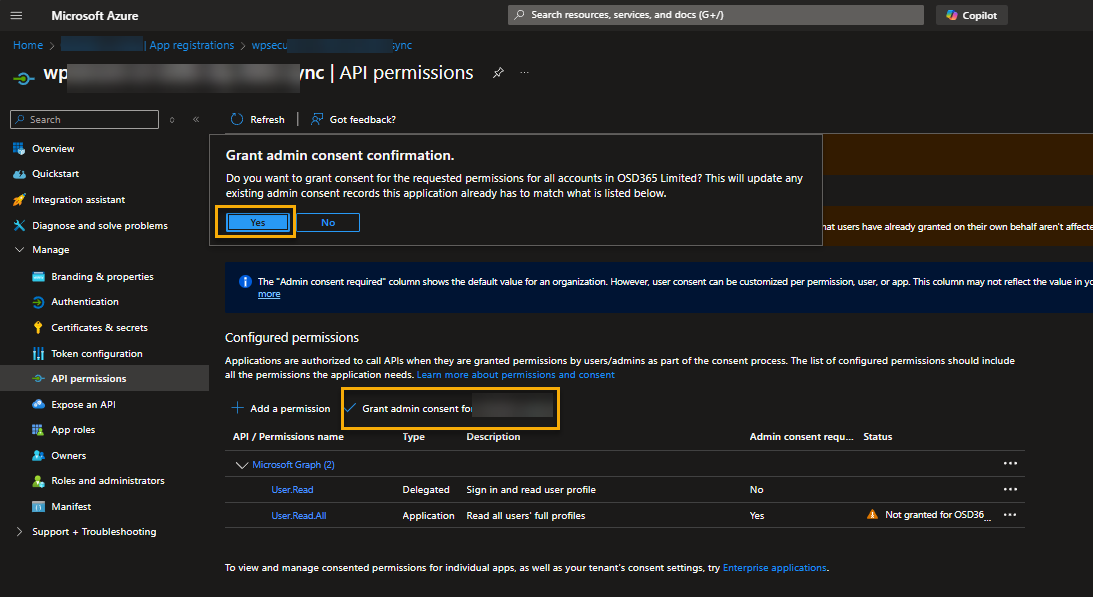
Click on “Grant admin consent.“
Run the following command in the standard Users context. Use the Tenant ID, Client ID, and Secret values from Notepad.
					$startInfo = New-Object System.Diagnostics.ProcessStartInfo
$startInfo.FileName = "C:\Program Files (x86)\wpsecure\wpsecure-set.exe"
$startInfo.Arguments = "wpsecure-set.exe -source azure -tenantid 9faddg5d6-1111-2222-a49a-001d78592732f -clientid 45e353948-6cdd-4b98-ad9b-7ff634566038d4 -secret NnS8Q~SOdoEdgdgdbghfbr0iIaIiwN345gdgssaugdhV -version 1.2.3.4"
$startInfo.WorkingDirectory = "C:\Program Files (x86)\wpsecure\"
$startInfo.UseShellExecute = $false
$startInfo.WindowStyle = [System.Diagnostics.ProcessWindowStyle]::Hidden
$startInfo.CreateNoWindow = $true
$scriptProcAD = New-Object System.Diagnostics.Process
$scriptProcAD.StartInfo = $startInfo
$scriptProcAD.Start() | Out-Null
$scriptProcAD.Close()
The executable ‘wpsecure-set.exe’ is in the WPSecure application directory within the ProgramFiles (x86) directory.
If the executable ‘wpsecure-set.exe‘ fails continuously due to multiple commands being issued concurrently, we recommend the following.
- Wait for 3 minutes for the queue to be processed.
- Lock and unlock your desktop (Windows Key + L).
The version is just your internal deployment identifier, which you would use if you were to deploy this using Software deployment tools like SCCM or Microsoft Intune.
Key | HKEY_CURRENT_USER\Software\Microsoft\Office\Outlook\wpsecure\signature |
Name | sddrversion |
Value | 1.2.3.4 (Any value you choose. Formatted as Version) |